Showing posts with label ANDROID. Show all posts

ENJOY MULTIPLE LANGUAGES IN YOUR ANDROID DEVICE

Hi friends.


Now i am back with a new post. In this post i tells you how to enable all languages in your Android devices becoz last days am looking for Hindi Language in my android device this is Micromax A67 but in this only one language English am so disappointed.
Than i found a Amazing app it provides me multiple language for writing.

The name of APP is SwiftKey.

click here to Download.


HOW TO ACTIVATE CALL WAITING SERVICE ON YOUR SMART PHONES

Friends.

Today i was very tired due to no call waiting service activate on my android smart phone. When i attended any call my friends and my relative they are call me again and again.But i was unable to pick there calls. After that they are all anger with me.The Call Waiting feature on your smartphone is very essential service which lets you hear beep notifications of an incoming call when you are already busy attending another call. This way you don’t miss important calls and have the freedom to take call in the sensitive period when you are expecting important calls.

At night am searching options on my smart phone. Than i found below setting in my smart phone.

1. First of all open the Dailpad.


2. Click on the option Tab.


3. It will be shows you Call Setting option.
4. Click on it.Than you shows this window. Select your Sim.


5. Click on Additional Settings.


6. Click on Call Waiting option.

Now your call waiting service activate on your Smart Phone.


How To Use Whatsapp on Phone And Pc at Same Time


  1. Download and install WhatsRemote on your rooted android phone.
  2. Now registered your email id on application. You will get 3 days trial pack to try this service.
  3. Now after step 1 & 2 , open whatsremote.com and continue login withGoogle account [Make sure email account which you enter in app and website should be same.]
  4. Now website’s application ask for confirmation just allow it. After that you will get list of your whatsapp friends in your browser. You can use this on multiple computers.
so here is all HOW TO USE WHATSAPP ON PHONE AND PC AT SAME TIME simple and easy steps enjoy %SEO friendly image.jpeg How To Use WhatsApp on Phone And Pc at Same Time

Hacking your Friends WhatsApp Conversation


Hacking your Friends WhatsApp Conversation 


Well now the same trick mentioned in the first step can be used in order to hack your friends WhatsApp conversation. You can easily snatch the .crypt files from your friends SD Card and then view them online using the RecoverMessages website.
  1. Just try to explore the friends SD Card and navigate to SD Card > Whatsapp > Database folder.
  2. Here you will two files -msgstore-yyyy..dd..db.crypt which will exactly contain date and year when the backup was created.
  3. Simply copy this files to your computer and then upload this file to “RecoverMesages.com” to view them online.
That’s it now you have easily hacked your friends Whatsapp Database, now you can view all the conversation and even ask him about his or her crush ;p, so guys this how hacking Whatsapp conversation works, so enjoy. 

HOW DO I TAKE A SCREEN SHOT OF MY PHONE DISPLAY WITH ANDROID 4.1 (JELLY BEAN)?

Sometimes a picture speaks louder than words. Share a screen capture of your favorite playlist, or your new high score. Forward a screen capture of a friend’s contact information. If you can see it on your smartphone, you can share it with your friends.
To capture your phone’s screen image, press and hold both the Power key and down volume key for three seconds, or until you hear the camera shutter click.

To see the screen image, touch Apps Image > Files > Device storage >Pictures > Screenshots. Touch and hold the image for files and sharing options, which will be at the bottom of the screen.

HOW TO CHECK YOUR ANDROID VERSION

Do you know how to check the version of Android on your Smart Phones? See these tips on how to check the version of Android on your smart phones.

Perform These steps:-

1. Click on the Menu option.

2. Click on the Setting tab.

3.Click on the About Phone option.

4.Then you are click on Android Version continuously

Now you can see your ANDROID VERSION..
.

HOW TO UPGRADE ANDROID VERSION

You can only upgrade to a higher version of Android if your phone supports the upgrade. You can upgrade your phone by following the steps given below:
  1. go to settings-> About Device -> Software Update

  2. Select Update

  3. It asks "check for software update"

  4. press OK

  5. wait for device to connect to server

  6. It will ask "download new update"

  7. select download

  8. wait for download

  9. Select install

  10. wait for install to complete

  11. after install it will give message "Device successfully updated"

Now your device is upgraded to Android 4.0. I am attaching the photos of each step in the form of rar file for your help. Download the photos and see each step. If any problem persists then feel free to contact me.

HOW TO INCREASE RAM OF ANDROID CELL PHONE/DEVICE USING SD CARD/MEMORY CARD

Today, I am going to make you realise how easily you can increase your android cell phone RAM using SD card. 
A lot of you people must be vexed with your old android mobile phones, having a small screen, outdated version of android like CupCake, Donut, Ginger Bread and HoneyComb, very low RAM and Internal Memory, slow processor speed and various other problems. You might have been on top when these phones were released into the market, but android phones are being updated everyday with new and better features. To move along with the trending  of cell phones, you have to buy a new one! 


Want to play a high end graphic game in your old android phone? Your phone crashes when you try to work on various apps at the same time? The major feature of your phone which constitute to these problems is the RAM. Now, if you are able to extend your RAM you can be capable of performing all those tasks. 

Methods To Increase RAM of Android Device

Basically there are two methods to boost or increase your phone RAM in Android phone. The first method uses an application, available for free and premium pack, in the Google play store or Android market. Download them and extend your RAM easily. The second method is done manually to increase RAM in Android phone.

METHOD 1: INCREASE RAM IN ANDROID PHONE USING APP

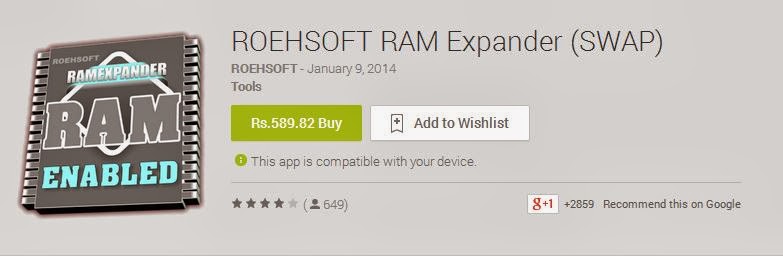
ROEHSOFT RAM EXPANDER (SWAP) (PREMIUM APP)

Roehsoft RAM Expander is a wonderful application where you can create partitions in your SD card or Memory card and convert and use it as your RAM. Your SD card will now act as a Virtual RAM for your Android phone.
Click here to Download the app
Click here to Download Free Version (Similar to Roehsoft RAM Expander)
Ram-Expander
FEATURES: 
Free SD card memory as a RAM use (SWAP RAM / SWAP MEMORY)
  • Swapfile RAM expansion up to 4.0 GB (file system limit)
  • There is No limit on SWAP partition.
  • The usual performance degradation when paged not occur with sd card from class-8
  • Widget for PNP swap (swap on / off swap)
  • Detailed Memory Information & Analysis
  • Autorun
  • Swappiness kernel parameter set
  • Easy foolproof use
  • Supporting Tung all Android devices (root access and Kernelswap support)
Using RAM Expander to increase Android phone RAM
  • Check for the compatibility of the app with your android device before downloading it. You can use a testing app,MemoryInfo & Swapfile Check, to check for it before buying the app.
  • Install the App on your Android phone.
  • Create Swap file by clicking Swap Active and Enable it.
  • Click Active Swap.
There you go! You have successfully increase RAM for your Android cell phone.

METHOD 2: FREE METHOD TO INCREASE RAM FOR YOUR ANDROID SMART PHONE

Requirements to increase ram in Android Smart Phone 
  • SD Card of Class 4 or Higher. 
  • Rooted Android Smart Phone or tablet. 
  • Windows Pc 
  • SD Card Reader 
To know more about Rooting and how to root using application Click Here!

STEP 1: Check If Your Android Phone Supports Swapping

As mentioned above, you have to check for swapping functionality. This can be done by using the MemoryInfo & Swapfile Check.
swap-check

STEP 2: Partition your SD Card or Memory Card

  • Download the mini tool partition wizard from the link: Mini tool partition wizard
  • Insert the SD card you want to make partition into your PC.
  • Open Mini tool partition and format the inserted SD card.
  • Now Make partition by right clicking on your SD card. Select the partition as primary and file system as FAT32 for card more than 4GB. 
  • Leave about 1 GB memory for next partition. 
  • Then select done and again click on make partition option select primary partition but change the file system to EXT2, EXT3 or EXT4. 
  • Click on apply changes and your partition is completed. 

STEP 3: Link with your Rooted Android Device.

  • Download Link2SD from the google play store. Click here!
  • Launch the app and give root permission. Choose the “.ext” partition.
  • Start linking them.

STEP 4: Increase RAM for your Android Device

  • For this you need to Download Swapper for Root. 
    swapperroot
  • Launch the app and select the amount of RAM you want to increase. 
  • This will create a .swp file and it will increase the RAm of your Android Device. 
And that’s it! You are done. Check your phone and you will find an increase in RAM by the amount you selected.
Congrats! You have successfully increased RAM of your Android device using SD card.


WHATSAPP LOCK FOR ANDROID


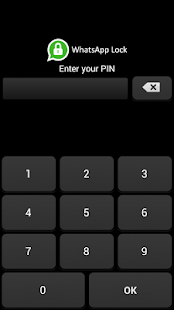
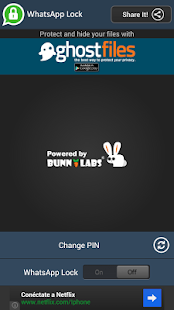
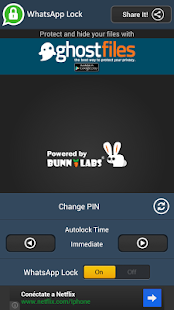
This app lets you protect your WhatsApp privacy through a PIN.
After installation it will ask you to set a 4 digit PIN, and will show the configuration options to lock WhatsApp

You can customize auto-lock time, so you don't need to enter the PIN every time you change task on your device
.
If you enter a wrong pin and your phone has front camera, it will take a picture of the intruder and saved in the photo gallery.
Block for WhatsApp protect msg - screenshot thumbnailBlock for WhatsApp protect msg - screenshot thumbnailBlock for WhatsApp protect msg - screenshot thumbnail

Have fun in detecting the intruder! (Only devices with front camera)
Features

★ It's free and has no limitations.
★ Keep your messages safe
★ Capture intruders when wrong PIN entered. Have Fun :)
★ Customize autolock time
★ Don't make you crazy with strange advertising.
★ It is ultra lightweight. Uses low resources and space.
★ Minimun special permissions required
★ Design attractive and simple user interface.

NOTE: This application is not related to Whatsapp company in anyway

WHATSAPP FOR WINDOWS PHONE USERS CAN SOON HIDE 'LAST SEEN' NOTIFICATIONS


it was reported that WhatsApp had brought the 'last seen' notification to Android devices, a feature that was already present on iOS devices. Now, according to recent reports, WhatsApp is bringing the hiding of the 'last seen' status feature to the Windows Phone app as well.


Reports claim the updated WhatsApp for Windows Phone app is in private beta (supposedly version 380), and has been rolled out only to a select list of users. Apart from the 'last seen' status notification, the updated app also brings in the background gallery. It is fair to assume that there will be a massive update in the coming days for the WhatsApp for Windows Phone app.

Reports of the WhatsApp for Windows Phone app in private beta claim users will also be able to control who in their contact lists see their profile photo and status, via the privacy control settings. The reports also mention that in the event users hides their status, they will not be able to view the statuses of their contacts as well.

Another new feature supposedly included in the WhatsApp for Windows Phone app is the Background Gallery. The team at WhatsApp is said to have added six new background wallpapers in addition to allowing users to take pictures, choose photos from an album, search pictures from the web and even delete pictures. In addition, features like Media Autodownload and Custom notification have also been spotted in the beta version.

There is still no word from the cross-platform messaging app developers as to when the updated app will go live, but it would be interesting to see as and when it does, how will it be received by users. A lot of discussion about Windows Phone as a platform not being an interesting one for app developers is going around, but, with the same updates rolling out for Windows Phone as are being rolled out for the Android and iOS platform, it seems like the attitude might be changing.

HOW TO TRANSFER A CONVERSATION FROM WHATSAPP

YOUR WHATSAPP CONVERSATIONS DON'T HAVE TO STAY ON YOUR PHONE. IN ADDITION TO CREATING BACKUPS OF YOUR ENTIRE CONVERSATION HISTORY IN CASE YOUR PHONE EVER DIES OR NEEDS TO BE RESTORED, YOU CAN ALSO EXPORT INDIVIDUAL CONVERSATIONS, WITH OR WITHOUT ANY MEDIA YOU OR YOUR CONVERSATION PARTNER SHARED WHILE CHATTING


REQUIREMENTS


  • The conversation export process happens through email, so you need to have at least one email account set up on your smartphone. If you have a Nokia S40 model phone, you also need to have a memory card inserted for the process to work. Like any other email, the exported conversation requires you to be connected to the Internet to be sent, either through Wi-Fi or over a cellular data network.


FORMAT


  • WhatsApp conversations are exported as a plain text file, readable on any operating system, which is automatically attached to an email message. If you choose to export the media that was included in the conversation, each individual media file is also separately attached to the email message. When choosing whether or not to include media, keep in mind that video and audio files can be fairly large and may cause the email message to be rejected if the recipient doesn't have enough space in his inbox or his email service places a hard restriction on the maximum size of an email attachment.

    BASIC METHOD


    • The exact button and tap sequence you use to export a conversation from WhatsApp depends on the type of phone you are using. The end result, however, remains the same -- a blank email message open in your phone's mail app, with the conversation history and, optionally, media files attached. Simply fill in relevant information -- the recipient's email address or, if you're saving the conversation for yourself, your own; a subject; some body text -- and then send the email as you normally would.

    ANDROID


    • Launch WhatsApp, touch and hold the conversation you want to export, select "Email Conversation" and then choose whether to attach media.

    IPHONE


    • Launch WhatsApp, open the settings and tap "Email Conversation" to open a list of all conversations saved in the app. You may have to scroll before this option becomes visible. Select the conversation you want to export and choose whether to attach media.

    BLACKBERRY


    • Launch WhatsApp, highlight the conversation you want to export in WhatsApp, press the "BlackBerry" button and select "Email Conversation."

    WINDOWS PHONE


    • WhatsApp and open the conversation you want to export. Tap the three dots in the bottom right corner, tap "Info" and then tap "Email Chat History." You may have to scroll down for this option to appear. Note that if the conversation is very long, it may be cut off due to the restrictions on maximum message size in Windows Phones.

    NOKIA S60


    • Open the main WhatsApp screen, tap "Options" and then tap "Settings." Tap "Chat History," tap "Send Chat History" and then select the conversation you want to export.

    NOKIA S40


    • Launch WhatsApp and open the conversation you want to export. Tap "Options," tap "Chat History" and then tap "Email."


HOW TO RECOVER DELETED WHATSAPP MESSAGES, VIDEOS AND IMAGES ON YOUR ANDROID/IPHONE

Here is how to recover deleted WhatsApp messages, video and images on your phone. As you must be knowing, WhatsApp automatically makes backups of text-messages, videos and images, at 4 am every day and stores them on microSD memory card of your phone.
The most simple method to restore the most recent back up of your deleted WhatsApp messages is to simply uninstall and re-install WhatsApp on your phone.
This method is the most basic and shall recover the most recent back up of same day (4am-4am cycle). This basic method shall not work if you need to restore older WhatsApp messages, videos and images. Let us learn how to restore older WhatsApp messages and other files.
Before beginning the restore process, please keep in mind that the current chat history will be lost upon restoration and you can only recover/restore only up to 7 days worth of WhatsApp backup files. Also, you must have a file manager to rename the backup files. I assume that your phone has a valid file manager installed on it.
Open the file WhatsApp to create a manual backup. Go to “Backup Conversations” of your WhatsApp chat settings. To make things easier, below is the path: WhatsApp > [Menu Button] > Settings > Chat Settings > [Backup conversations]
Perform manual backup. The manual backup file are saved as “msgstore.db.crypt” in the local folder of WhatsApp database (/sdcard/WhatsApp/Databases folder) and can be found under the following locations:
Android WhatsApp Database Path:/sdcard/WhatsApp/Databases/msgstore.db.crypt
iPhone WhatsApp Database Path:/net.whatsapp.WhatsApp/Documents/ChatStorage.sqlite
Rename the manual backup file so that you can easily find it among local WhatsApp database folder. Please note, the backup files are always saved in the/sdcard/WhatsApp/Databases/ folder. Now recover the messages from manual backup. Let us learn how to restore WhatsApp messages and other files from a manual backup.

Restore WhatsApp Messages From a Manual Backup

  1. Uninstall WhatsApp
  2. Select backup file you want to restore
  3. Rename that backup file from “msgstore-YYYY-MM-DD.1.db.crypt” to “msgstore.db.crypt”
  4. Install WhatsApp
  5. Click [Restore] when prompted to restore your message history
  6. Done
Now your deleted WhatsApp messages are restored and can be easily accessed on your phone.